
Interactive Digital Signage: Technology, Applications and Examples
- Multitouch
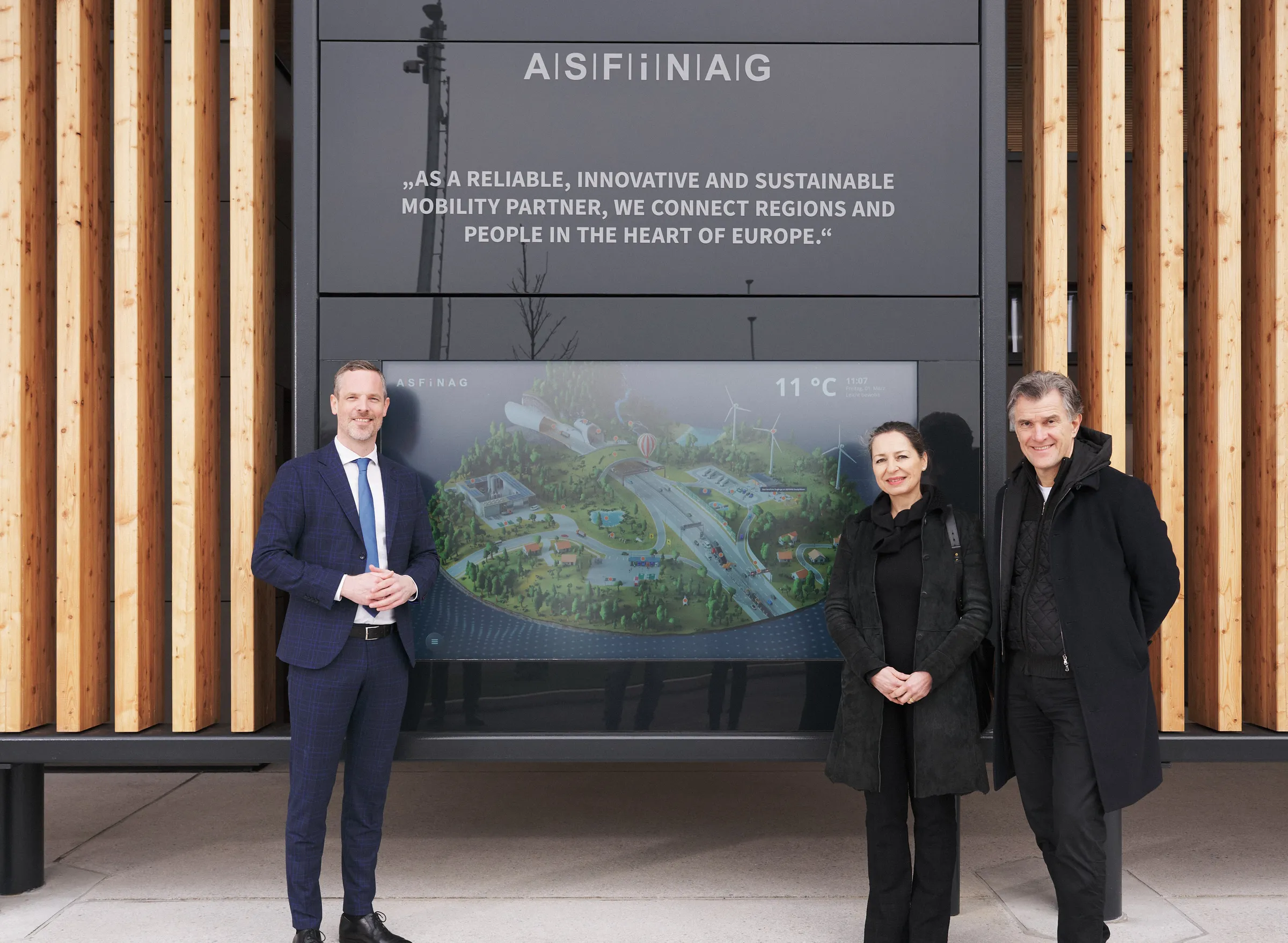
A visitor selects an application on a media wall. A product on a multi-touch table brings up the relevant information. An interactive map can be explored together. In these situations, people have a direct influence on what digital content appears and how it is displayed.
Interactive digital signage refers to digital information and presentation systems whose content can be influenced by user input. Touchscreens, gesture control, object recognition and connected mobile devices enable a shift from general display to individual exploration.
For showrooms, corporate lobbies and exhibitions, this offers a practical advantage: an installation can provide a clear overview whilst also catering to a range of interests. The key here is the interplay between content, user interface, software and the location where the application is used.
What distinguishes interactive digital signage from traditional digital signage?
Digital signage refers to the display of digital content on screens or other electronic display surfaces. Typical examples include information screens in the foyer, digital menu boards and event notices.
Even traditional digital signage systems can display up-to-date data and change their content depending on the time of day, location or other conditions. However, displaying weather information on a screen does not in itself make the application interactive.
The key difference lies in the extent to which users can influence the system: can they select topics, alter the way information is presented, compare different options, and so on?
Characteristic
Traditional digital signage
Interactive Digital Signage
Selection of content
Due to editorial considerations, the timetable or data rules
In addition, through user input
Use
View information
Select, examine or edit information
Procedure
Predefined or rule-based playback
Different paths depending on your choice
Example
The screen displays the latest company news
Visitors select business areas and open the relevant applications
Both forms can be combined. An installation can initially display content automatically and invite users to interact with it (known as ‘waiting mode’ or ‘idle mode’). As soon as someone interacts with it, it switches to active use. After a reasonable period without any input, it returns to its initial state.
How does interactive digital signage work?
An interactive application links an input to a clear response. For this to work, several components must work together.
1. Display and PC
Displays, media walls, multi-touch tables or projections are used to present the content. An integrated PC, media player or a separate workstation runs the application.
The requirements depend on the content. A simple selection of topics requires less computing power than a detailed real-time 3D model.
2. Input and recognition
Touch sensors, cameras or proximity sensors detect user input. The application must recognise what the user intends to do and respond reliably.
A presence sensor can, for example, trigger the start of the programme. A further control option is required for the subsequent selection of topics.
3. Interactive software
The software determines what happens after an input is made. It opens information, modifies models, compares products or transfers content to another screen.
In doing so, it must also manage the process: How do you get back? What happens if several entries are made at the same time? How does the session end?
4. Content and data
Text, images, videos, product information and 3D models form the basis of the content. Interfaces can also provide data from other systems.
A content management system for showrooms and exhibitions enables the content intended for these purposes to be managed. The concept must already specify which media and structures are to be editable at a later stage.
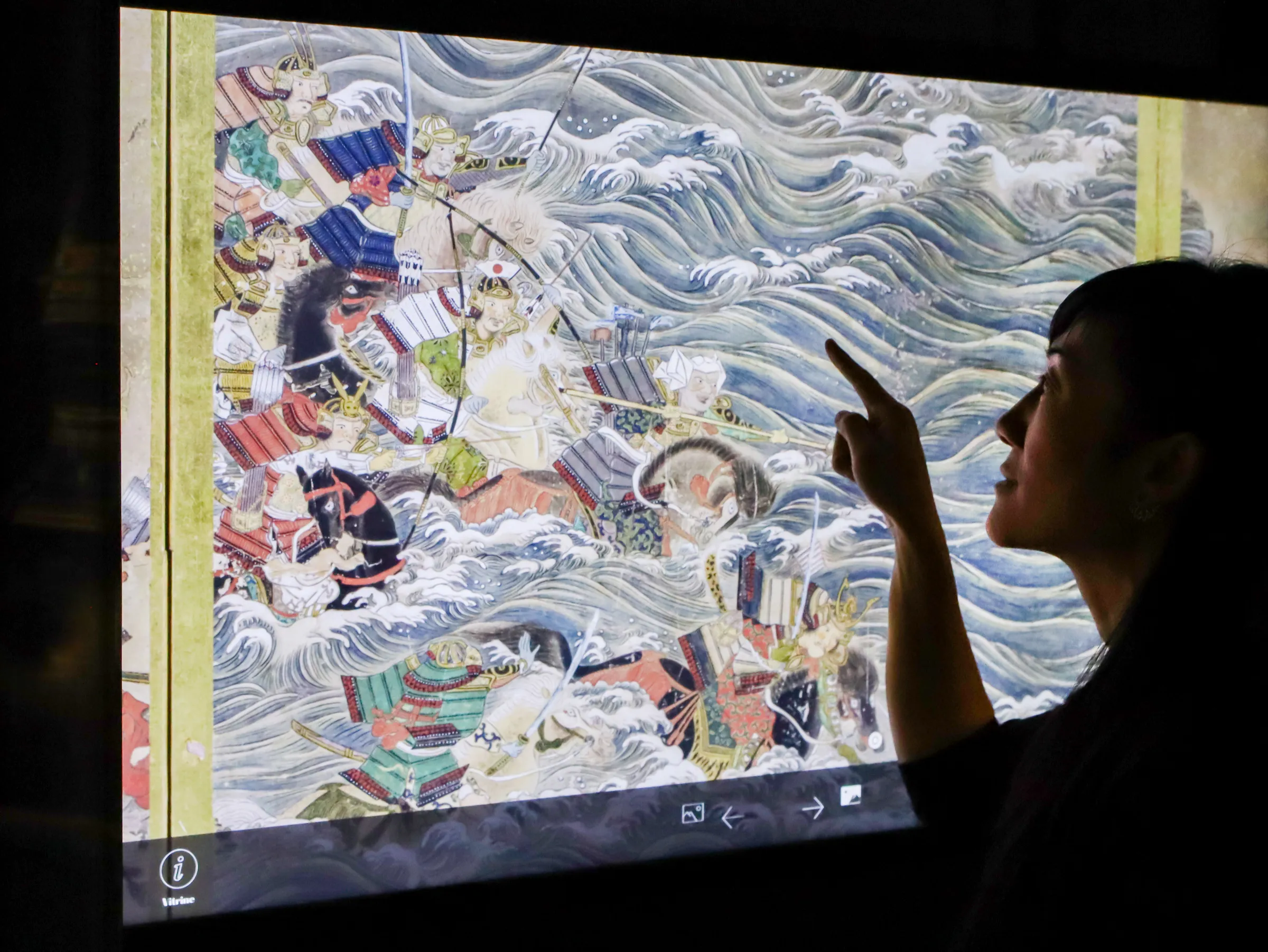
What forms of interaction are suitable?
The most appropriate method of operation depends on the task, the target audience and the environment. Touch-based controls are often easy to understand, but are not suitable for every situation.
Form of interaction
Typical application
Key planning considerations
Touch and multi-touch
Choice of topics, maps, product comparisons, joint presentations
Accessibility, large controls and simultaneous use
Gesture control
Remote control, fun applications
Intuitive gestures, detection range and visible feedback
Presence and proximity sensors
Engagement and an invitation to interact
Appropriate trigger range and unobtrusive response
Object recognition, RFID or NFC
Products and samples provide relevant information
Reliable mapping and straightforward handling of multiple objects
Smartphone and QR code
Take information with you or open an app on your own device
Clear transition, accessible content and connection
Language
Search or hands-free operation
Acoustics, languages and dealing with recognition errors
A QR code on its own does not make an advert interactive. However, it can link to an interactive application.
Augmented reality supplements real-world products with digital information or visualisations. It is a form of presentation which, in turn, can utilise various input methods.
Where does interactive digital signage add value?
Showrooms: explaining complex products together
In an interactive corporate showroom, presenters must be able to address a range of different questions. A procurement manager may be interested in potential applications; a technical delegation may wish to gain a clearer understanding of functions and interfaces.
Interactive applications allow users to start off together and then explore topics of their choice in greater depth. Hosts can open relevant products, compare variants and visualise technical processes.
Corporate foyers: providing guidance and conversation starters
A foyer can give visitors an insight into the company’s activities even before their appointment. An interactive installation showcases business areas, technologies or applications and allows guests to choose their own areas of focus.
It should be possible to use the system quickly and without any training. It is important that it is easy to get started, responds quickly and allows users to return easily to the overview.
Museums and exhibitions: catering to a variety of interests
In museums and interactive exhibitions, visitors can choose the language, topic and level of detail. An exhibit remains the common point of reference; digital content provides further context.
For example, this makes it possible to examine historical documents, explain how objects work, or offer multiple perspectives on a topic.
Public information systems: answering specific questions
With the help of interactive maps and information points, people can search specifically for places, attractions or services. It is particularly important that the desired answer is found quickly.
Outdoor installations must meet additional requirements in terms of brightness, weather resistance and ease of use. They are also vulnerable to potential vandalism.
Off-the-shelf software or bespoke development?
A standard platform may be suitable if recurring requirements can be met using existing functions, for example in the case of themed menus, directories or simple catalogues. A complex standard solution may also be appropriate where there is a very large number of identical terminals or workstations. To assess this, check the actual interaction options offered by the relevant software.
Customised development becomes relevant when specific processes or technical connections are required. These include, for example:
- Real-time 3D with project-specific functions,
- linking real-world products to digital information,
- operation by several people at the same time,
- Content displayed across multiple linked screens,
- the control of lighting, audio or exhibits,
- Interfaces with existing business systems.
Both approaches can work together: an existing CMS can provide content, whilst a bespoke application handles the interaction.
Above all,a detailed,interactive product presentation requires a suitable structure for its content: what information helps users to compare products, and how should the differences be presented to make them clear?
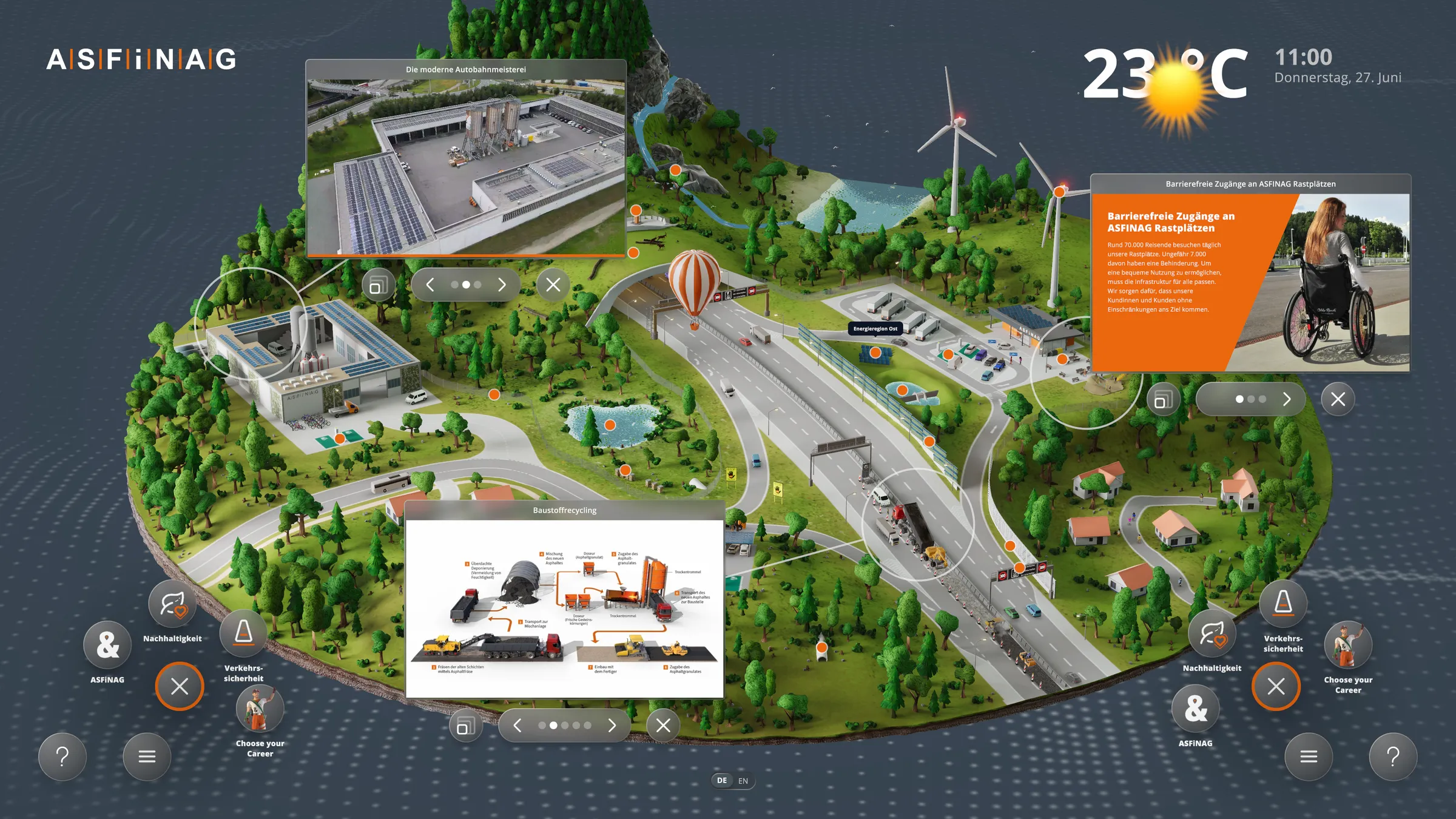
ASFINAG: an interactive map for travellers
At ASFINAG’s ‘Rest Area of the Future’, an 86-inch outdoor screen combines digital information with multi-touch operation.
Several visitors can explore a sustainability map at the same time. A real-time 3D model illustrates sustainable motorway operations; weather and traffic information round off the experience.
Garamantis developed the multi-touch software, the 3D model and the central CMS. This example demonstrates how a public information display can provide both up-to-date information and in-depth content of the user’s choice.
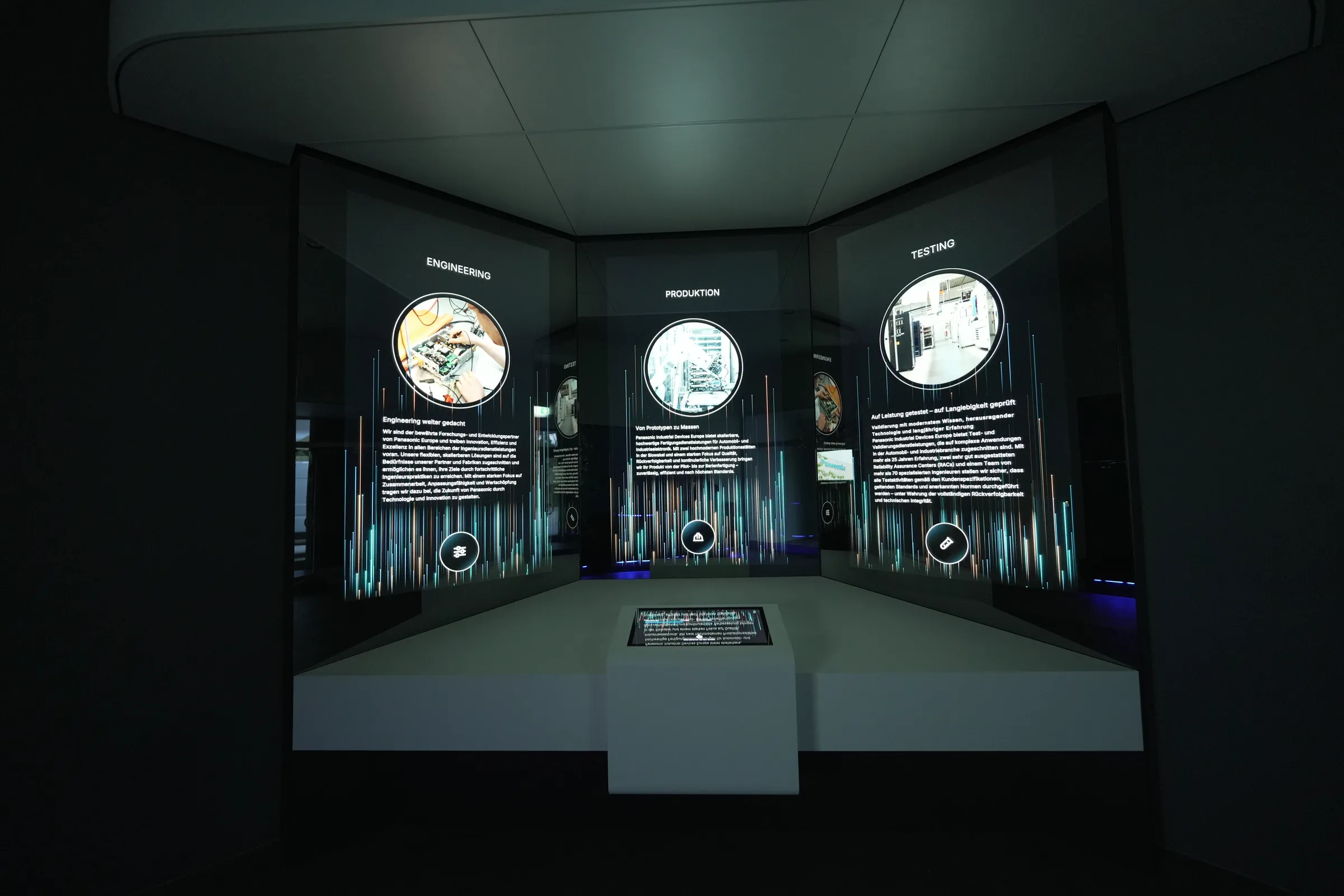
Panasonic: Discover the technologies in the corporate foyer
In the corporate foyer of Panasonic Industrial Devices Europe, visitors can select technologies and services via touchscreen. The content takes them from an overview to the finer details and helps to spark initial discussions.
Three 86-inch displays are integrated behind mirrored glass. This makes the digital content appear to be floating; LED and sound effects complement the feedback in response to user input.
Panasonic can tailor content to specific target audiences via the central CMS. The installation thus combines the spatial design of the reception area with an interactive corporate presentation.
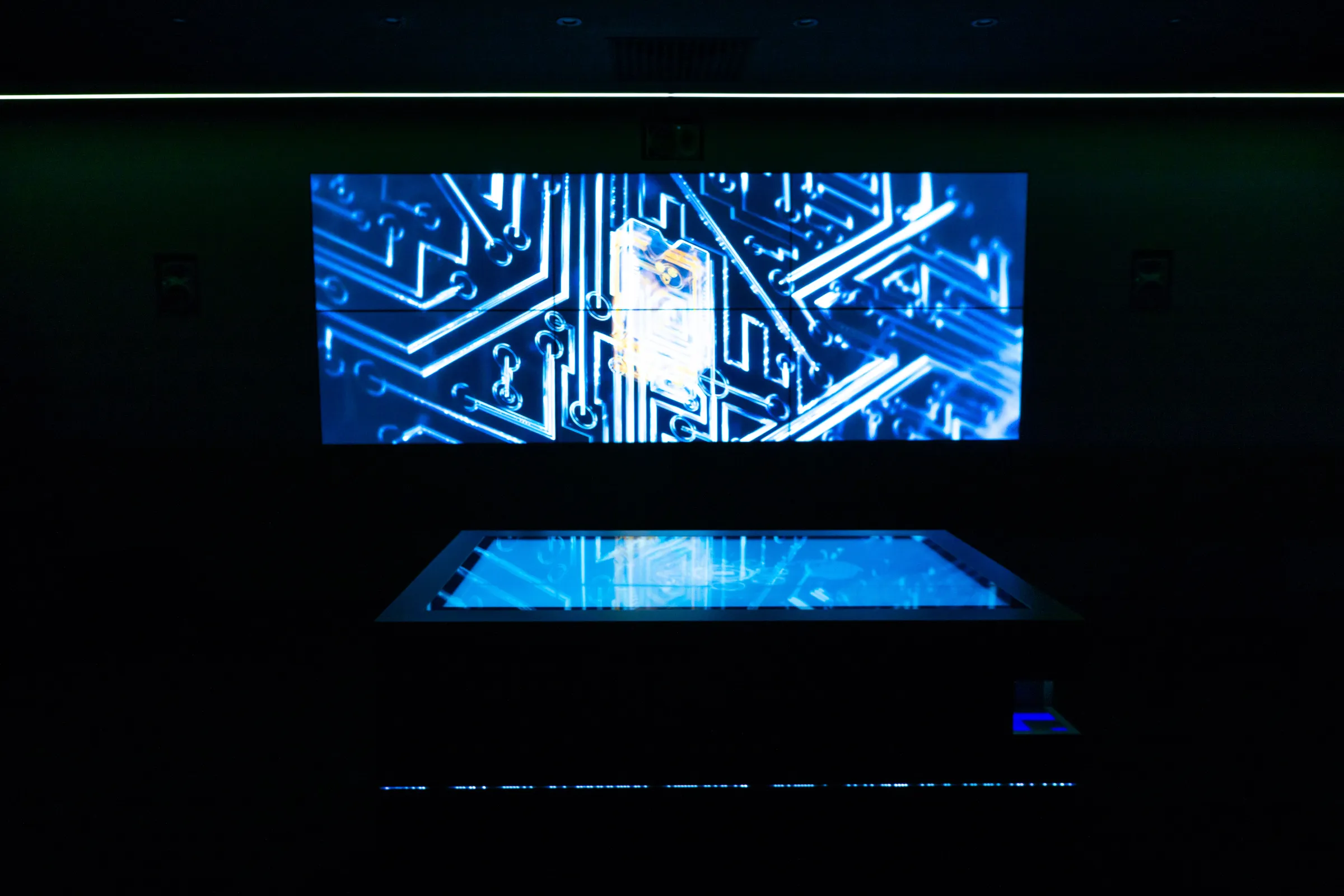
Lingemann: Bringing together products and procurement processes
Lingemann’s Procurement Future Showroom combines a multi-touch scanner table, a screen wall, active IoT products, and lighting and audio.
At the table, hosts and guests can explore content and display it on the screen wall. A configurator allows IoT solutions to be placed within a simulated production environment.
In this way, individual product details are transformed into clear application scenarios. The shared focus on procurement helps to steer the discussion towards specific customer requirements.
5 factors that make for a good interactive application
The quality of an installation is evident from how easy it is to use and how reliable it is in everyday life.
- Clear entry point: Visitors should be able to tell that the system can be used. Often, a specific prompt such as ‘Select your application’ is more helpful than a decorative animation.
- Immediate feedback: Every input requires a clear response. During longer loading processes, it must remain clear that the system is currently processing the request.
- Clear structure: A small number of straightforward options make it easy to get started. Details can then be explored step by step.
- A suitable user interface: font size, viewing distance, operating height and space for movement all go hand in hand. An interface should be tested in a real-world setting.
- Clear conclusion: After use, the next person must find the system in a clear and understandable state. Time limits should not unexpectedly interrupt ongoing interactions.
Plan content, CMS and operations at an early stage
Before development begins, decide which changes your team should be able to make themselves later on. These often include product descriptions, images, videos, language versions and references.
The CMS organises this content within the designated structure. New user workflows, additional interfaces or other forms of interaction may require further development of the application.
To ensure reliable operation, the following questions should also be answered:
- Who checks and publishes new content?
- What media are available locally?
- Which functions require up-to-date data or an internet connection?
- Who is responsible for software updates and technical faults?
- How is the installation cleaned and maintained?
- What does the application display if a data source or sensor fails?
Take accessibility and data collection into account
Interactive content should be easily visible and usable by its intended users. This includes sufficient contrast, legible text, subtitles and alternatives to complex text. In the case of permanently installed equipment, accessibility and available space for movement are also important.
The W3C’s WCAG2ICT guidelinesexplain how the principles of the Web Content Accessibility Guidelines can be applied to software outside the web. They provide technical guidance; the specific requirements of the device and its intended use must also be taken into account.
Checklist for your interactive digital signage project
- The communication objective and key user groups have been defined
- Interaction triggers a specific information or presentation task
- The introduction, navigation, feedback and conclusion are described
- The hardware and input method are suited to the environment
- Content and the necessary data sources are available
- CMS functions and editorial responsibilities have been coordinated
- Accessibility and alternative methods of operation have been taken into account
- Data collection and technical access have been clarified
- Maintenance, support and operation are covered
- Success criteria are aligned with the purpose of the installation
Garamantis combines design, software development and technical integration in the conception and implementation of interactive systems. Further completed projects demonstrate a range of possible applications.
Frequently Asked Questions about Interactive Digital Signage
Does interactive digital signage always require a touchscreen?
No, gestures, connected devices, voice commands and mobile devices can also be used as input methods. Presence sensors, for example, are suitable for activation. A suitable method of operation is required for targeted topic selection.
Can existing displays be retrofitted?
This depends on the display, the PC, the installation and the intended use. An existing screen may, under certain circumstances, be reused. Whether additional sensors, a touch overlay or another method of operation is appropriate must be assessed on a case-by-case basis.
Can companies update content themselves?
Yes, provided that a CMS and appropriate content structures are in place. The project will specify which texts, media and data your team is authorised to edit. This is to be distinguished from changes to functionality.
What determines the costs?
Key factors include the number and type of display screens, the scope of the software, content production, sensor technology, interfaces and installation. In addition, there is technical support and ongoing content maintenance. A reliable assessment requires a defined usage scenario.
How can success be measured?
Consider whether the intended task is being successfully carried out: Are visitors able to find information? Can they compare products? Does the application facilitate conversation? Usage data, observations and feedback complement one another in this regard. A long dwell time on its own is not necessarily evidence of good usability.